JMAC - JOB Market Access Center

Showing posts with label flex3 help. Show all posts

How to install flex builder 3 on windows

In this post, We are going to learn how to install flex builder 3 on windows. When we download Flex Builder 3 from Adobe, we find there are four versions currently available, two for windows and two for the Mac. For each operating system there are two versions, one known as standalone installer and other as a plug in installer.


We are going to demonstrate the use of the stand alone installer here. But if you’re already Eclipse user, you might instead use the plug in installer. Now in Flex Builder 2, there was only single installer executable and you make the selection of standalone versus plug in installation, During the installation process. In Flex Builder 3 there is actually two separate installers, and you want to make sure to start with the right one. Now how do you decide which one we want?


While, if you are developer who is already using the Eclipse for other purposes such as JAVA development, you might decide to use the plug in installer. So that you install Flex Builder 3 on top of the existing Eclipse installation. This allows you to keep all your existing plug ins and then simply lay Flex Builder 3 on top of the existing environment.


If your new to the Eclipse though, you probably better off using the stand alone installer, which include a copy of Eclipse. Even if you’re using the standalone installer though, it is important to know that you installing not for the Flex Builder Plug ins but also the complete copy of the Eclipse. And you free then to go other plug ins for other platforms. For instance, ColdFusion developers some times like to go CF Eclipse of free plug in for coldFusion application development. Even if the standalone installer, your still running the basic Eclipse workbench, that means you can go and get the additional plug ins and lay them in on top of Flex Builder installation.

So lets get started, We have downloaded the Flex Builder 3 windows installer and placed on desktop.

To get started, double click and start the installation process.
Flex Builder3 Installer for Windows


It takes few moments for the installer to unpack all of the files.

Flex Builder3 is preparing to install for Windows


But once it’s done, we’ll be ready to do the installation. We can install the windows version of the Flex Builder3 on windows 2000/Xp/Vista.It is important to make sure we have enough memory. It is recommended minimum of 1GB of RAM on windows machine. And if we also running databases or other heavy duty memory potencive applications, The probably better off the 2 GB of RAM if we can get it.

When the installer finished the unpacking all files on harddisk, you first presented with the informational screen and asks what language we want to use for the installation.

Flex Builder3 Built on Eclipse for Windows

We leave it to the default selection of English and click OK.
After few moments,We see the introduction screen.


Flex Builder3 installer wizard - quit all programs before continuing with this installation


Make sure we quit all the programs before we continue with the installation. In particular, we make sure close any browser windows such as Firefox ,or Internet Explorer. As part of this installation, we will be installing the ActiveX and Plug in versions of the Flash Player. And we need to make sure the browser windows are completely closed before we can continue with that process.
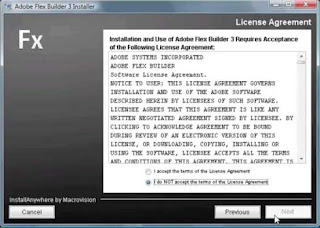

Flex Builder3 Installer Wizard License Agreement


We click the next buttion, on the screen, if we accept the Terms of the license agreements. Click the “I accept“ button and click NEXT. And then indicates where we want to install Flex Builder3.


Flex Builder3 Installer wizard - Choose Install Folder

We always use the default settings of Program Files\ Adobe\Flex Builder 3. But we can put Flex 3 anywhere on disk.
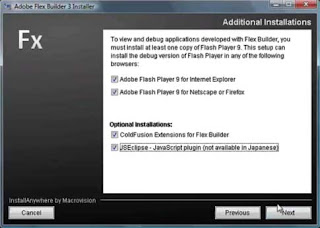

Flex Builder3 Installer Wizard - Additional Installations


On the next screen, we’re asked what the additional soft ware tools to install. We always wanted to include the flash Player. The version of the Flash Player in going to be install this point is the debug Flash Player 9 and this version Flash Player is critical to debugging and otherwise testing our applications. There are also tools additional available called ColdFusion extensions for FlexBuilder. The ColdFusion extensions for FlexBuilder are valuable plug in that can be used for ColdFusion developers. The extension includes RDS capability, Remote Development Services. That allows you to connect ColdFusion servers and get data structure information and generate valuable code.The JSEclipse installation is for JavaScript developers. The JSEclipse plug in is a special use for developers to going to build AIR or desktop applications. And incorporating JavaScript based functionality. We don’t need either of these installations and infact if we don’t install this point it’s okay. Because you will be able to install them later on.


I am a ColdFusion Developers works FlexDevelopers, so I like to install ColdFusion extension for Flex Builder during the initial installation. I also some time do JavaScript application development and it doesn’t hurt have JSEclipse install, so I go ahead and select them as well and click Next.
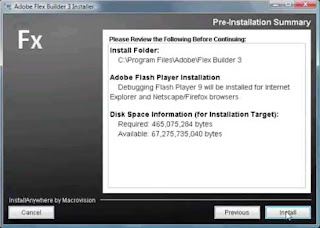

Flex Builder3 Installer Wizard - Pre-Installation Summary

After few moments we see a summary of the installation selections, and then We click the Install button to complete the installation.


Flex Builder3 - Installing Adobe Flex Builder 3

The installation takes a few minutes to run but once it is installed, we then able to start up flexbuilder 3 and start building applications.

Flex Builder3 Install Complete

When the installation complete, we see the “Congratualations” message. Adobe Flex Builder 3 has been installed successfully and this point we are ready to get started with the applications.

Flex Resources

Certain flex resources will be valuable to you as you learn how to build applications using the Flex Frameworks. First the Adobe Developers Center. The Developer Center is location for adobe puts all the most impressive information about the Flex Application Development includes articles, tutorials, sample applications and so on.

A large part of the Flex Application Framework has been opensourced and the open source Home Page for this platform is the Flex.org. Here you can find the additional tutorials, information about all source of resources about Flex Application Developers, including information about how to built an applications with Cold Fusion, JAVA, .NET, PHP, RUBY and information about user groups that you can find your area so that is the introductory locate the world Flex Application Developers.

Create a Flex Application with three steps?


  1. First you select the predefined visual components. Those are part of the Flex Class library also known as the Flex Framework. You then arrange those components into user interface.
  2. You use styles and skins to customize the application appearance, if you have graphic designers involved in your application development process, they might create, what we call graphical skins, using Flash, Illustrator, or Fireworks.
  3. You then add interactions, to the applications using Event Handling and ActionScript code, this allows you to react to user gestures, such as mouse actions, and the Keyboard.
  4. You connect to data and communication services. You can use one of the services, that I described earlier, or you can use remote services, that are encapsulated in SOAP(Simple Object Access Protocol) or REST(Representational State Transfer) based web services.
  5. 5. And then, Finally when we put all the tools together you build and run the application.

What is Flex Application?

So what exactly is Adobe Flex3?

A Flex Application delivered as a flash *.SWF file when it delivered to the web it wrapped in a generated HTML page, and when the same application is wrapped up and distributed for AIR deployment or in Desktop application, it’s generated down applications that can be installed locally on a windows, MAC or Linux based systems. Flex applications that delivered through the web browsers requires the flash player the client they require the most recent version of the flash player version 10.

Documents that are generated with Flash CS4, the most recent version of the Flash Development Environment. As a flash document, Flex Application gives you complete access to all Flash Tools, which might be used for working with the Flash Environment such as Drawing API and the ActionScript Programming Languages.

Flex Applications use ActionScript3, the most recent version of the ActionScript language and as such the compatible flash documents that might generate in the flash offering environment using ActionScript3.

What is Flex3?

So what exactly is Adobe Flex3?

Flex is Adobe Platform developing and deploying Rich Internet Applications, and beginning with the Flex 3, It’s also a platform for developing and deploying desktop applications, That would be deploying using the Adobe Integrated Runtime (AIR), known as AIR.

Flex includes both free and commercial tools. The free tools are all parts of something called the Flex 3 SDK, a Software Development Kit. This is the set of tools, that you can download and deploy from the adobe and you can use them for free with out registering or license incurring costs. This SDK includes command line computers, the Flex class library, or the list of components, that are used to build the flex applications, and set of powerful debugging tools that you can use to debug and fine tune yours applications before you deliver them to the users.The commercial tools for Flex includes Flex Builders 3 IDE, That based on Eclipse workbench.

We are primarily using Flex Builder 3 to build Flex application to demonstrate, but all the applications that we develop, could also been built using the SDK, without incurring the licenses and cost.

There are also some server based products that are available from the Adobe, That have strong Flex integration tools, Life Cycle Data Services 2.5, is a java based application designed to run on top of the Java Enterprise Edition or J2EE servers.We can run LifeCycle Data Services on the top of the Web Spehere, Web Logic, JBoss and others J2EE Server Products, The BlazeDS, this is completely free Java based server products, that incorporates many popular features of LifeCycle Data Services, but for free. You can also use Cold Fusion 8 with Flex. Cold Fusion has powerful Flex integration features and we will be learning these features later during this training.

Getting started with Flex

Getting started with Flex begins with downloading the Flex Builder 3 integrated development environment (IDE). You can do that for free by going to the Adobe website (http://adobe.com/flex) and clicking on the Try Flex Builder 3 link. It’s
a pretty big download, so while you are waiting you might want to know to get some inspiration regarding what you can do with Flex.


Here, I’m going to give an overview of the world of the Adobe Flex3 Application Development. I start with the description of what Adobe Flex 3 is it? Look at the development environment, and the various tools that Adobe defines for Flex Application Developers. We take a look at how to install and then how to use Flex Builder 3. The Integrated Development Environment(IDE), that builds around the Eclipse work bench. We take a look at how to use Flex Builder Design View, to build application in WYSIWYG(What-You-See-Is-What-You-Get).


We see the basic “Hello World..!” application and we look at now how application is built on the context of the Flex Builder Project would turn store in the workspace. We take a look at the anatomy of an application. What are the application files generated during the completion process and how to deploy those applications to over the web server for use by users.